
How to Automate Event Photo Delivery with VowPix's Dropbox Integration
Say goodbye to manual browser uploads forever. Learn how to connect your Dropbox account to VowPix and automatically sync event photos into your branded client gallery in real-time — with zero compression and zero effort.
VowPix team· 12 June 2026· 5 min readProduct Updates

If you are an event or wedding photographer, you already know the pain. You spend hours editing thousands of photos in Lightroom or Capture One. You carefully export them. And then... you sit there, staring at a browser tab, waiting for uploads to finish. Sometimes it takes 2 hours. Sometimes 5. Sometimes the browser crashes at 87% and you start all over again.
We built VowPix to solve exactly this problem. And today, we are thrilled to announce our brand-new Dropbox Auto-Sync Integration — a feature that completely eliminates manual browser uploads from your workflow.
Why We Built This
Every week, we heard the same frustration from photographers:
"I love VowPix galleries, but uploading 2,000 wedding photos through the browser takes forever."
"My internet is slow. The upload keeps failing after 500 photos."
"I wish I could just drop files into a folder and have them appear in the gallery."
So we listened. And we built exactly that.
With the new Dropbox integration, you can connect your Dropbox account to VowPix, map a folder to any event, and every photo you drop into that folder will automatically appear in your branded VowPix gallery — in real time, with zero compression, and without touching a browser.
How It Works — Step by Step
Step 1: Connect Your Dropbox Account
Head over to the Connectors page in your VowPix dashboard. You will see the new Dropbox integration card right there. Click the "Connect Dropbox" button and authorize VowPix.
Important: We only request read-only access to your Dropbox. We will never modify, move, or delete any of your files. Your originals stay exactly where they are.
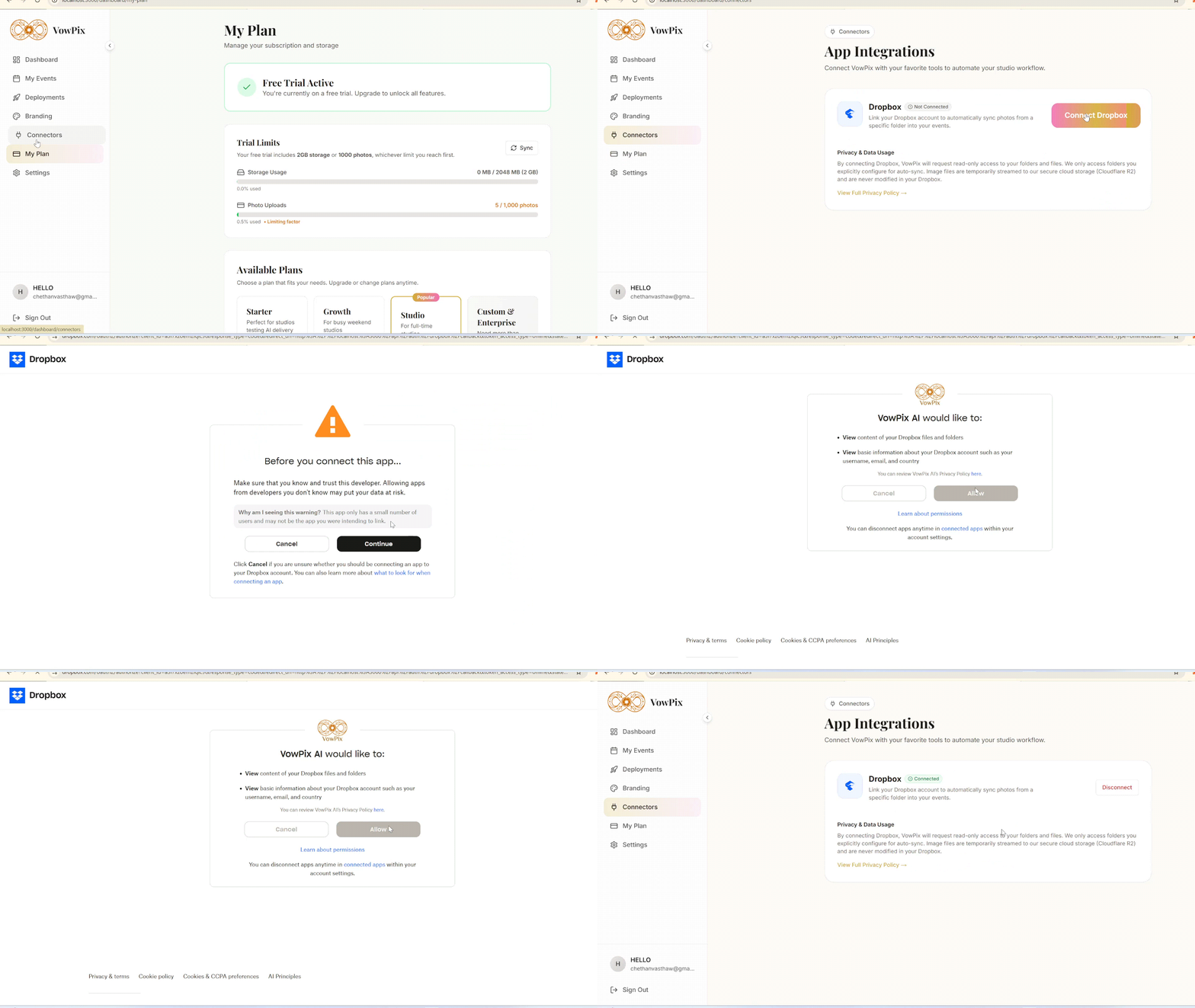
Once authorized, you will see a green "Connected" badge. That is it — your account is linked. You only need to do this once.
Step 2: Map a Dropbox Folder to Your Event
Now go to any event in your dashboard. Open the event Settings tab and scroll down to the "Dropbox Auto-Sync" section. Here you can select exactly which Dropbox folder should be linked to this specific event.
For example, if you have a folder called /Wedding - Raj & Priya in your Dropbox, you can map it to your "Raj & Priya Wedding" event in VowPix.
Pro tip: You can also set up Dropbox sync while creating a brand-new event. Just toggle the "Dropbox Auto-Sync" switch on the event creation page and pick your folder right there.
When you select a folder, VowPix will show you a confirmation popup explaining:
- This folder is now under active watch
- Any photos currently in the folder, and any new ones you add, will be automatically imported into VowPix
- Imported photos will consume your allotted storage
If you do not want to import existing photos, simply create a new empty folder in Dropbox first, then select that folder. This way, only freshly exported photos will sync.
Step 3: Drop Photos and Watch the Magic
Here is where it gets exciting. Set your Lightroom (or Capture One, or any editing software) export destination to that Dropbox folder on your computer. Hit export.
Dropbox syncs the files to the cloud automatically. VowPix detects the new files within seconds and streams them directly into your branded client gallery — bypassing your browser entirely.
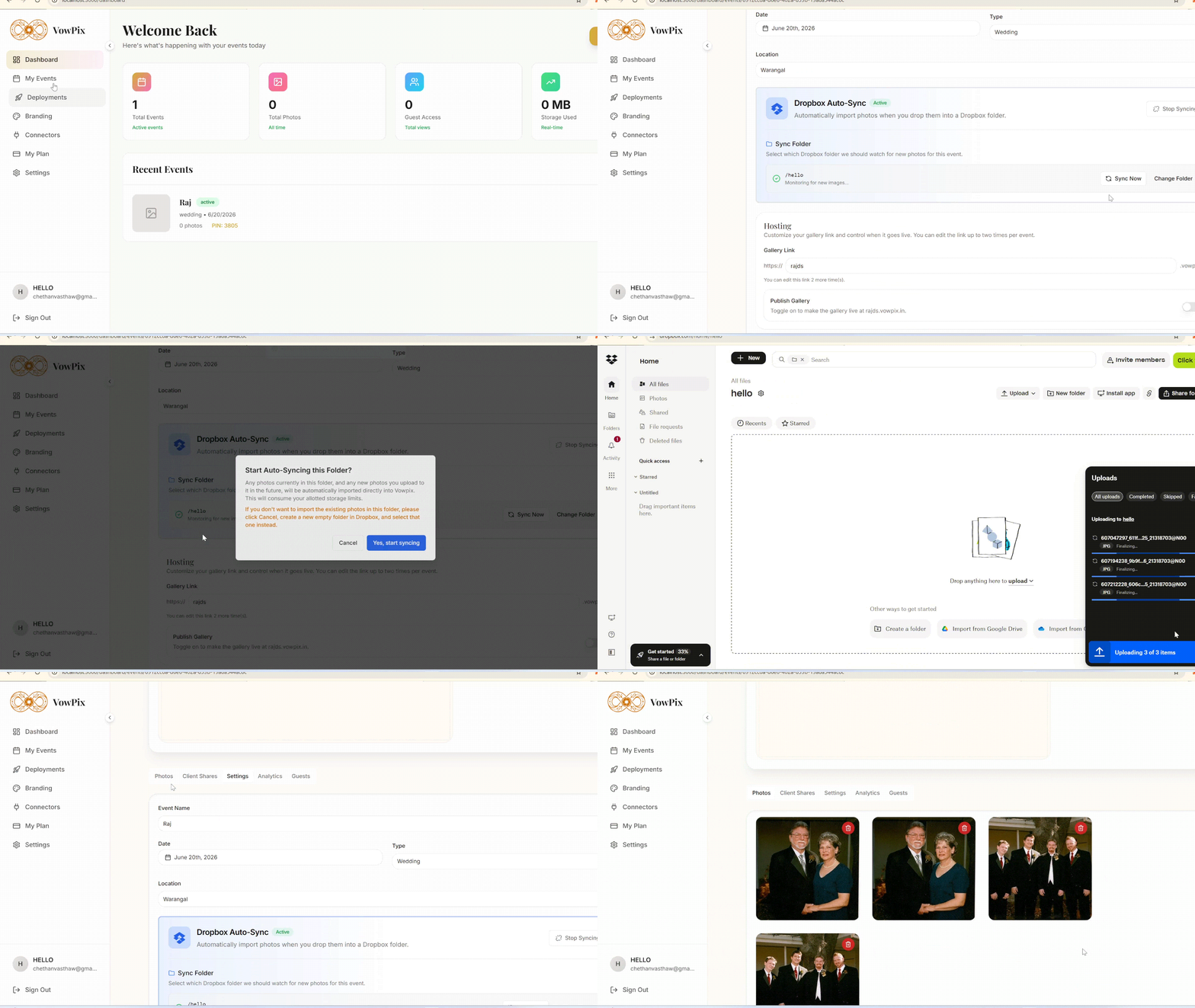
No upload progress bars. No browser tabs to babysit. No crashes at 87%. Just drop and go.
What Makes This Special
Zero Compression, Always
Unlike other platforms that silently downscale your images, VowPix streams the original file bit-for-bit. A 25MB RAW-exported JPEG goes in as a 25MB JPEG. Your couples and clients always download the exact quality you intended.
Works With Any Editing Software
If your software can export to a folder, it works with VowPix. That includes:
- Adobe Lightroom Classic — set your export destination to your mapped Dropbox folder
- Capture One — same approach, just point the output folder
- DxO PhotoLab — export recipes can target Dropbox folders
- Luminar Neo — batch export directly into the synced folder
No Browser Timeouts
Traditional browser uploads are limited by your connection speed and browser memory. Upload 3,000 photos? The tab might crash. With Dropbox sync, VowPix handles files on the server side. Even if your internet drops for a few minutes, Dropbox will resume syncing, and VowPix will pick up right where it left off.
Smart Duplicate Detection
Worried about re-syncing the same photos twice? VowPix automatically detects duplicates using Dropbox file IDs. If a photo already exists in your gallery, we skip it. No double uploads, no wasted storage.
Real-Time Webhook Updates
VowPix does not poll your Dropbox folder every few minutes hoping to find new files. Instead, we use Dropbox webhooks — the moment you add a file, Dropbox notifies VowPix instantly. Your photos appear in the gallery within seconds, not minutes.
Common Questions
Q: Will my Dropbox files be deleted after syncing? No. We never modify or delete anything in your Dropbox. Your files stay exactly where they are.
Q: Can I sync multiple events to different folders? Absolutely. Each event can have its own mapped Dropbox folder. You can have 10 events, each syncing from a different folder.
Q: What file types are supported? JPG, JPEG, PNG, and WebP are fully supported. HEIC files are not currently supported for auto-sync — use our free HEIC to JPG converter tool if needed.
Q: Does this work on the free tier? Yes! The Dropbox integration is available to all VowPix users, including free trial accounts.
Q: What happens if I disconnect Dropbox? Your existing gallery photos stay in VowPix. Only future auto-syncing stops. You can reconnect anytime.
The Ideal Workflow for Wedding Photographers
Here is the workflow we recommend for maximum efficiency:
- Before the event: Create your VowPix event and map a new empty Dropbox folder to it
- After the event: Import your photos into Lightroom and start editing
- During editing: Set your Lightroom export destination to the mapped Dropbox folder
- Hit export: Lightroom exports to the folder, Dropbox syncs to cloud, VowPix auto-imports to your gallery
- Share with clients: Your branded gallery is ready. Share the link and PIN with your couple
- Guests find their photos: Guests scan a selfie, and VowPix AI finds all their photos instantly
The entire post-event delivery — from Lightroom to client hands — can happen without you ever opening a browser to upload.
Try It Now — It Is Free
Stop wasting hours on manual uploads. Stop babysitting browser tabs. Stop losing photos to upload crashes.
Connect your Dropbox to VowPix today and experience what automated photo delivery feels like.
No credit card required. Your first event is on us.
Try it on your next event
Deliver the whole wedding before the couple is back from the honeymoon.
Free trial with 2GB, 1,000 photos and 1,000 face scans. No credit card.
Start free